
.svg)
.svg)

How we tested the best AI slideshow makers
We skipped glossy vendor demos and put every serious contender through the same four-stage test—stopwatch in hand.
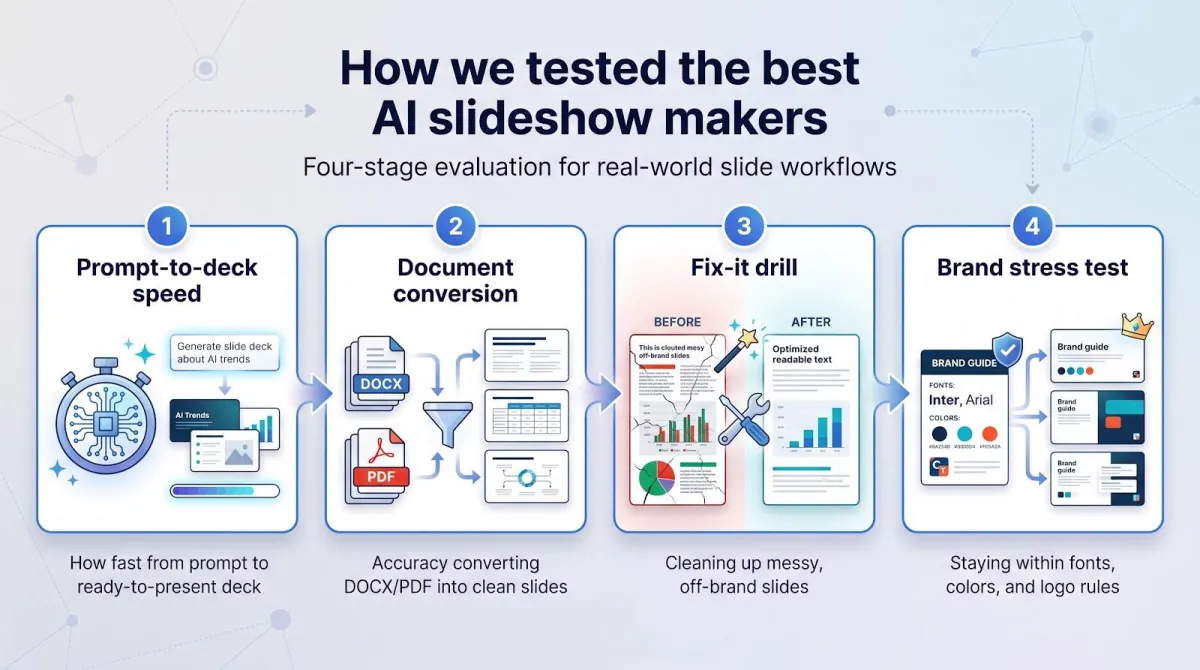
Test | What we measured | Why it matters |
|---|---|---|
Prompt-to-deck speed | Seconds to first draft and minutes to “presentation-ready” | Exposes the cleanup time marketing pages gloss over |
Document conversion | Fidelity when turning a 1,700-word DOCX and identical PDF into slides | Most users start with docs, not perfect prompts |
Fix-it drill | Seconds to repair a five-slide “worst-case” deck (tiny fonts, off-brand colors, crowded charts) | Reveals whether AI can edit as well as create |
Brand stress test | Errors against a house style (2 fonts, 4 colors, and 1 logo) | Brand compliance often matters more than raw speed |
Scoring rubric
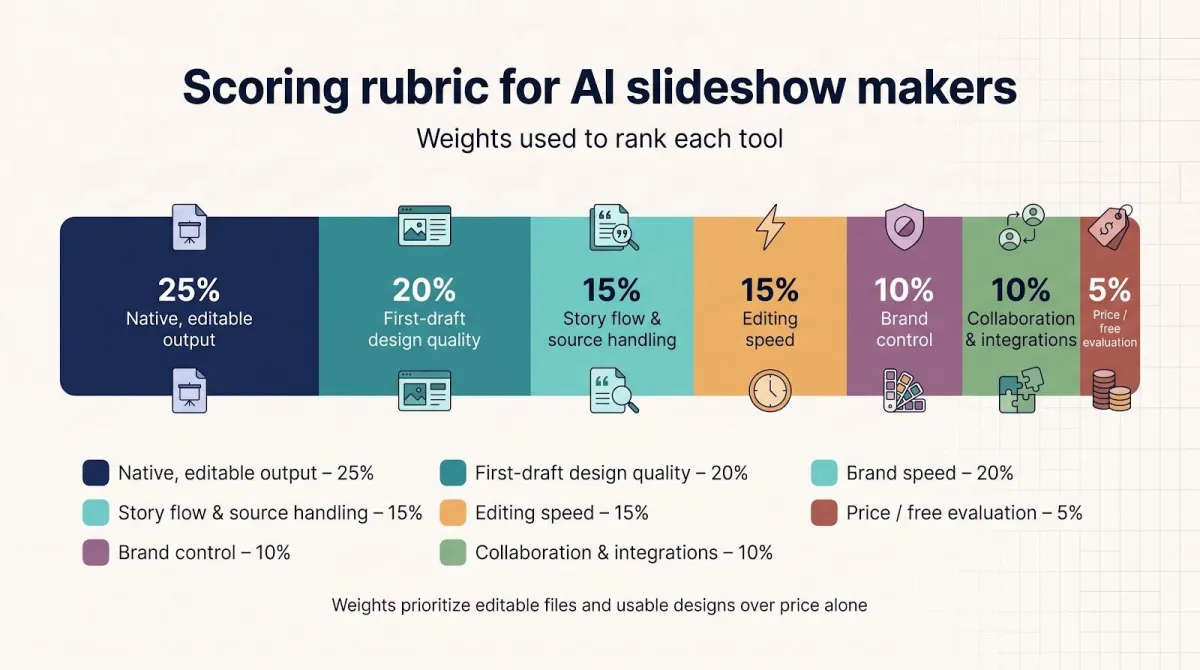
We weighted each criterion to match what most readers need: an editable file they can open in PowerPoint or Google Slides.
- Native, editable output: 25 percent
- First-draft design quality: 20 percent
- Story flow & source handling: 15 percent
- Editing speed: 15 percent
- Brand control: 10 percent
- Collaboration & integrations: 10 percent
- Price / free evaluation: 5 percent
We verified prices, free-plan limits, and export restrictions on September 1, 2026 and archived screenshots, so the rankings reflect what you’ll experience when you click Generate, not last quarter’s press release.
1. Plus AI — best for editable PowerPoint and Google Slides
Why Plus AI tops our ranking
Open a deck in PowerPoint, click the Plus AI ribbon, and the work happens inside the file you will present. You skip the web-export round trip, every shape stays editable, and you save the hour normally spent realigning text boxes.
Our launch-deck prompt returned a clean outline, on-brand colors, and native charts we could edit like any hand-built slide. No stray text frames, no flattened images — just real objects ready for polish.
The same add-on sits in the Google Slides toolbar. One click inserts a fresh slide, rewrites a clunky paragraph, or remixes a whole deck without leaving the doc. That dual-ecosystem support was unique among the tools we tested, and it is the main reason Plus AI takes the top spot.
Next: the features that shave hours off your prep, plus the limits worth knowing before you buy.
Key features that shave hours off your prep
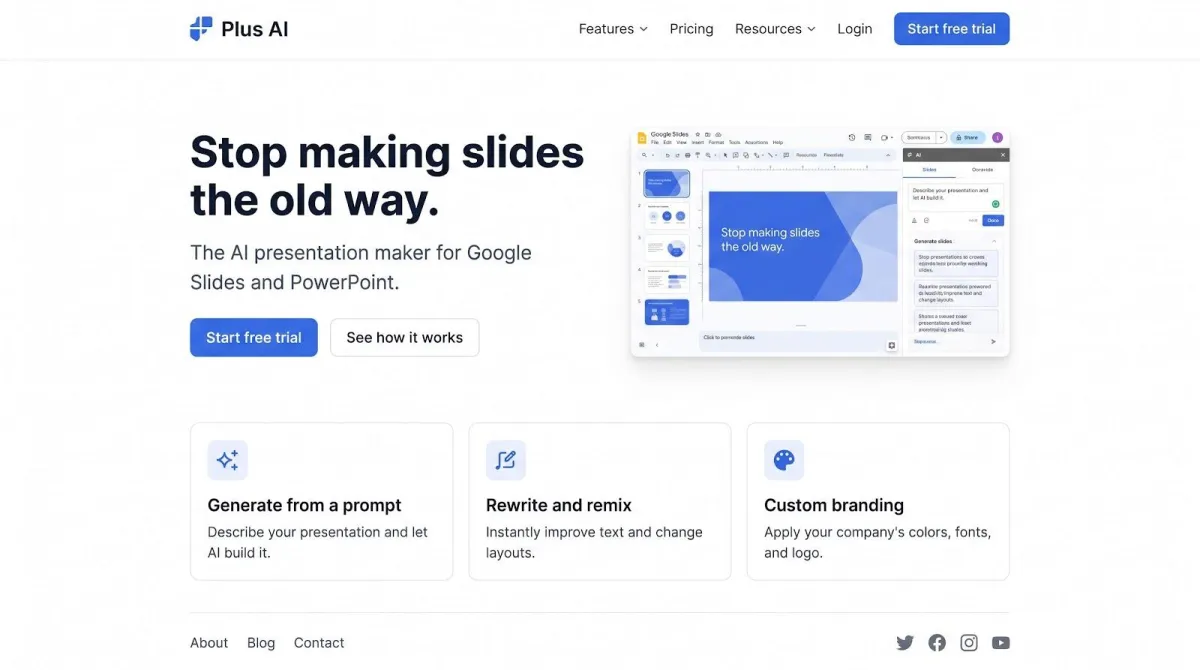
Plus AI inside PowerPoint or Google Slides interface
Convert a Word doc or PDF with no copy-paste gymnastics.
Upload a report (DOCX, PDF, or TXT) on a Pro plan or higher and Plus AI maps headings to slide titles, pulls bullets into concise points, and flags spots for visuals (see the detailed upload guide). It skips embedded images for now, but the text lands clean, so you are formatting, not pasting.
Remix cluttered slides in one click.
Select any busy slide, hit Remix, and Plus rewrites long text, swaps a bloated table for a chart, and realigns objects to your theme faster than manual nudging.
Insert new slides on the fly.
Need a “Customer quote” or “Next steps” slide mid-deck? Type a prompt, choose a layout, and Plus drops an editable slide with logo, colors, and fonts intact.
Get inline AI tips while you edit.
Hover over a slide and Plus suggests shortening headlines, adding data points, or slotting in testimonials, so you improve the story without opening a separate chat window.
Lock your brand once, use it everywhere.
On a Team plan, you can load your corporate template or save logo, fonts, and color presets so every generated slide respects master layouts.
Because Plus AI runs directly inside PowerPoint and Google Slides, you can Stop making slides the old way and keep every change in the file you’ll actually present. It then stays with you as an on-call editor, turning rough content into polished, brand-ready slides in minutes instead of hours.
Pricing and honest drawbacks
Every paid plan starts with a 7-day, 1,000-credit trial that requires a credit card. The clock begins at installation, so activate when you are ready to build.
Plan (annual billing) | Monthly cost per user | Key unlocks |
|---|---|---|
Basic | $10 | Prompt-to-deck generation |
Pro | $20 | 3,000 monthly credits plus document uploads (DOCX, PDF, TXT) |
Team | $30 | 6,000 credits plus logo, fonts, and colors locked to every deck |
Enterprise | Custom | SOC 2, SSO, company templates, API access |
Monthly billing runs about 50 percent higher ($15, $25, $40). Even at $20, Plus AI costs less than a freelance designer. If you often convert reports to slides, you will need Pro or higher, so include that cost in your budget.
Trade-offs we noticed in testing
- Images and charts inside uploaded docs don’t import. You will have to add them manually after generation.
- No forever-free tier. Hobby projects may outgrow the trial and return to copy-paste work-arounds.
Neither limitation is a deal breaker for teams that already live in PowerPoint or Google Slides, but know the fine print before you swipe the corporate card.
Ready for raw speed and live web links? Jump to Gamma, our pick for the fastest web-ready draft.
2. Gamma — best for the fastest web-ready draft
Why Gamma wins on speed and shareability
Paste a 250-word brief into Gamma, and a responsive, card-based deck appears, complete with animated reveals, on-brand icons, and a live share link you can drop in Slack before the water boils. In our 10-slide test, Gamma surfaced a first draft in 23 seconds, the fastest of any tool we measured.

Gamma responsive card-based presentation interface
These cards behave more like mini web pages than static slides; they resize for phone, tablet, or desktop, so stakeholders can skim on the train without pinching or zooming. That mobile fluidity helped Gamma grow to over 70 million users and 400 million creations by late 2025.
Speed is not the only draw. The built-in Agent pulls facts from the web, drops inline citations, and tweaks your outline on command. Ask for a tighter value prop or a fresh color theme, and it responds in seconds, keeping momentum high.
If you are a founder updating investors or a marketer crafting social teasers, that immediacy can outweigh the trade-off: you surrender native PowerPoint objects for pure velocity. For many teams, that feels like a fair bargain.
Next: the features that make Gamma feel like a design sidekick and the export headaches you should budget time for.
Standout features and the gotchas we uncovered
Agent-powered outlining.
Type “10-slide seed-round pitch,” and Gamma’s Agent builds an outline, pulls supporting stats, and drops inline citations in seconds, so you edit facts in context instead of juggling side notes.
One-click theme swaps.
Swap the default deep purple for any palette and every card (backgrounds, icons, charts) updates instantly. No text boxes stretch, and no hex codes required.
Responsive, trackable decks.
Every deck lives at its own URL. Share it and Gamma logs views and time-on-slide, helping sales teams see where attention spikes or fades.
―――――――――――――――――――――――
The fine print
- PowerPoint / Slides exports need a polish pass. Gamma’s help docs warn that fonts can substitute and images may shift or flatten during export; we saw the same in testing.
- Credits evaporate quickly. Free users start with 400 AI credits and can’t buy more; regenerating a 10-slide deck (≈ 35 credits) burns through the allowance fast.
- Pricing jumps steeply. Moving from Plus ($9/user/mo) to Pro ($18) doubles the fee, and brand-locking features live behind an Ultra tier that begins at $90/user/mo (annual billing).
Verdict: Gamma moves fast when link-based sharing matters more than pristine PPTX fidelity. Schedule a 10-minute cleanup window before sending a downloaded file to a client.
3. Beautiful.ai — best for automatic design guardrails
Why Beautiful.ai keeps every slide on-brand
If misaligned headers and rogue font sizes bother you, Beautiful.ai acts like a safety net. Its Smart Slides engine locks content to a grid, auto-resizes text, and balances charts the moment you edit, so in our brand-stress test it was the only tool that corrected off-palette shapes before we noticed.

Beautiful.ai smart slide editor keeping slides on-brand
Start with a prompt — “Quarterly business review, 10 slides” — and the first draft already looks sign-off ready. Titles stay in the right hierarchy, spacing stays uniform, and color ratios respect accessibility contrast rules. We spent eight minutes polishing the deck, roughly half the time logged in Plus AI or Gamma.
Those guardrails travel with the file. Export on a paid tier and the slide objects remain editable in PowerPoint or Google Slides, backed by the same Smart Slide rules. (You may need to install missing fonts to avoid substitutions.)
That visual discipline is why Beautiful.ai holds a 4.7 out of 5 rating from more than 190 reviewers on G2, and why sales teams and global departments rely on it for templates that must look identical across regions. You give up some layout freedom but gain the brand consistency most CMOs demand.
Next: the automation tricks that make Beautiful.ai feel like a silent designer, plus the trade-offs you should weigh before committing.
Automation tricks and the strings attached
Smart Slides keep layouts disciplined.
Add extra bullets and the text shrinks; paste a 90-word paragraph and Beautiful.ai auto-splits it into digestible chunks, so the grid never breaks.
Design ideas surface as you build.
Hover over a slide and a carousel of alternative layouts appears — charts, timelines, image-left/text-right — already matched to your theme colors.
Shared libraries lock consistency.
Upload your logo once and it lands in every new deck. Approved images, icons, and fonts follow suit, so regional teams stop reinventing assets.
Viewer analytics close the loop.
Share a web link and Beautiful.ai shows views and time-on-slide, helping you tune the story between meetings (analytics are link-only; they don’t travel with a downloaded PPTX).
―――――――――――――――――――――――
What to watch out for
- Editable exports cost extra. Saving as an editable PowerPoint or Google Slides file is available only on paid plans, and you may need to install missing fonts locally to avoid substitutions.
- Some manual cleanup. In our test, 4 of 10 exported slides needed minor spacing tweaks.
- Trial, then pay. The permanent free plan ended in 2026; you now get a 14-day trial, then $12 per user per month for Pro or more for Team/Enterprise.
- Creative ceiling. Power users report feeling boxed in when they want an unconventional layout or oversized headline; you can override the grid, but every change fights the auto-align engine.
If brand conformity outranks layout freedom, Beautiful.ai is the colleague who straightens every crooked picture frame, so budget a few minutes for export checks.
Honorable mentions: choose these for a specific workflow
These seven runners-up solve edge-case needs the Top 3 do not cover. Scan the row that matches your situation, then dig deeper if the fit looks right.
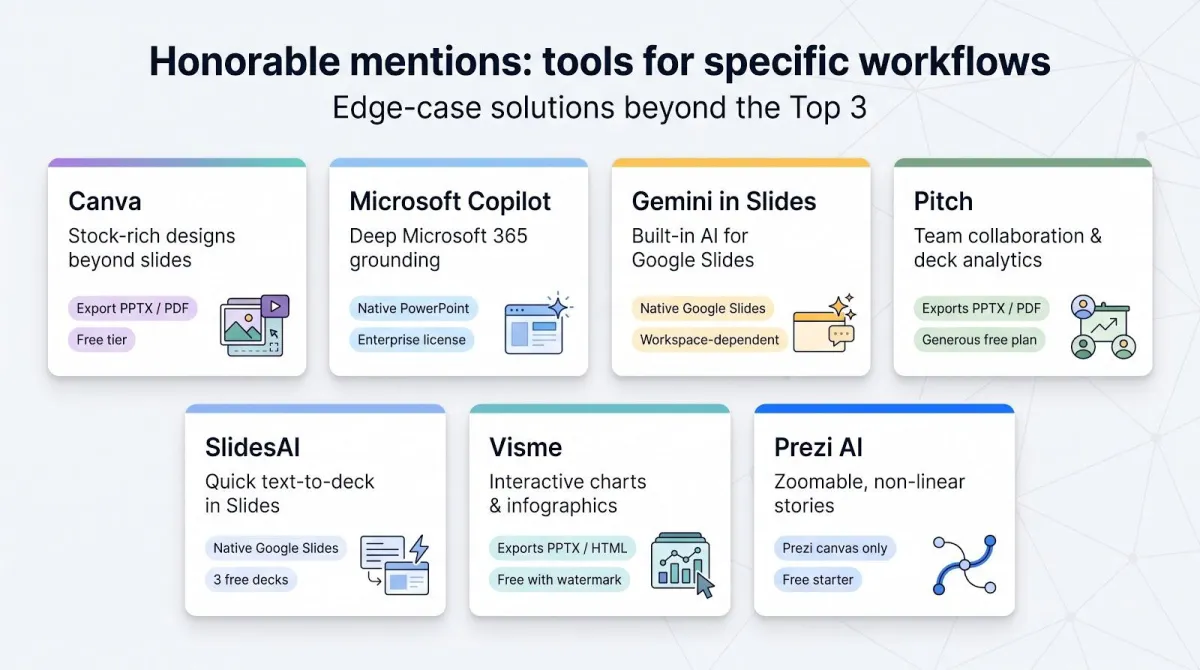
Tool | Best when you need… | Works inside PPT / Slides? | Free tier* | Key trade-off |
|---|---|---|---|---|
Canva | Stock images, videos, and designs beyond slides | Export only (PPTX / PDF) | Yes, 250 K+ free templates | Easy to over-design and lose narrative focus |
Microsoft Copilot | Deep Microsoft 365 grounding and data access | Fully native PowerPoint | Only with selected 365 plans | Requires enterprise license; basic slide aesthetics |
Gemini in Slides | Built-in AI for Google Workspace shops | Fully native Google Slides | Included in some Workspace tiers | Availability shifts by plan; design controls limited |
Pitch | Real-time team collaboration plus deck analytics | Export PPTX / PDF | Generous free plan (up to 10 guests) | AI generation less advanced than leaders |
SlidesAI | Quick text-to-deck inside Google Slides | Native Google Slides | 3 free decks per month | Basic design; no brand controls |
Visme | Interactive charts and infographics | Export PPTX / HTML | Yes, with watermarks | Heavier UI; steeper learning curve |
Prezi AI | Zoomable, non-linear storytelling | Prezi canvas only | Free starter plan | Poor fit when clients expect classic slides |
*Pricing and limits checked September 1, 2026.
If none of these solve your outlier need, stick with the Top 3 and keep life simple.
How to choose the right AI slideshow maker
Begin with one question: Where will your final deck live?
- PowerPoint or Google Slides. Choose a tool that generates native files, such as Plus AI for most teams or Microsoft Copilot / Gemini in Slides if those licenses are already in your stack. Native objects spare you export cleanup and keep every chart editable.
- Web link. Need something you can text to a client? Gamma’s responsive cards and live analytics win here; just plan a brief tidy-up of the exported PPTX if someone asks for one.
- Locked-down brand consistency. If every header, color, and logo must match the style guide, Beautiful.ai or Pitch keeps the guardrails in place.
Quick decision tree
- Editable PowerPoint required?
- Yes → Plus AI, Copilot, Gemini, or SlidesAI
- No → Go to 2
- Fastest first draft the top priority?
- Yes → Gamma (23-second draft in our test)
- No → Go to 3
- Strict brand guardrails essential?
- Yes → Beautiful.ai or Pitch
- No → Canva (best stock assets) or Visme (interactive charts)
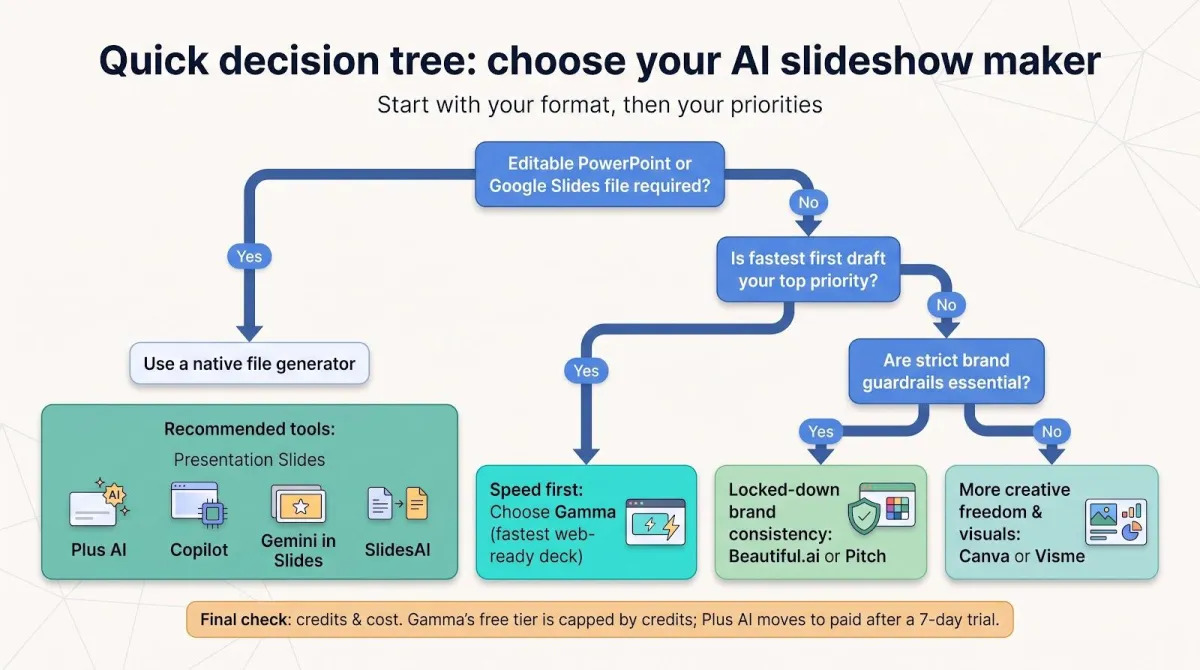
Add one final check: credits and cost. Gamma’s free tier tops out at 400 AI credits, while Plus AI moves to paid after a 7-day, 1,000-credit trial. Make sure the pricing model fits your workload before you commit.
Final verdict
- Need an editable PowerPoint or Google Slides file? Choose Plus AI and skip export cleanup.
- Racing a deadline and happy to share a link? Gamma can surface a first draft in about 23 seconds, so you are in front of stakeholders before lunch.
- Care most about strict brand consistency? Beautiful.ai keeps every pixel on grid.
Whichever route you take, remember: AI drafts the slides, you craft the story.

%20(2).png)
%20(1).png)
%20(2).png)
.svg)


.png)
.png)


.png)


